
Yes. Word, PDF, and PowerPoint files compare against each other in any combination, with no account needed. Moved-content detection, formatting change detection, password-protected PDFs, scanned-page OCR, and multi-pane view are all available too. PDF export is free to try and unlimited on Pro.
Compare PDF and Word Documents
Find the difference between Word or PDF files!
Upload PDFs or Word Documents and the difference will show up below.
Browse
Browse
Compare Word documents and PDFs
Diffchecker compares Word documents, PDFs, and presentations against each other, in any combination. Drop two files in and every change to the wording, formatting, and layout is highlighted.
Everything in the document diff tool
Five views of the same two documents, from formatted side-by-side text to the rendered pages themselves, plus a redline you can hand back.
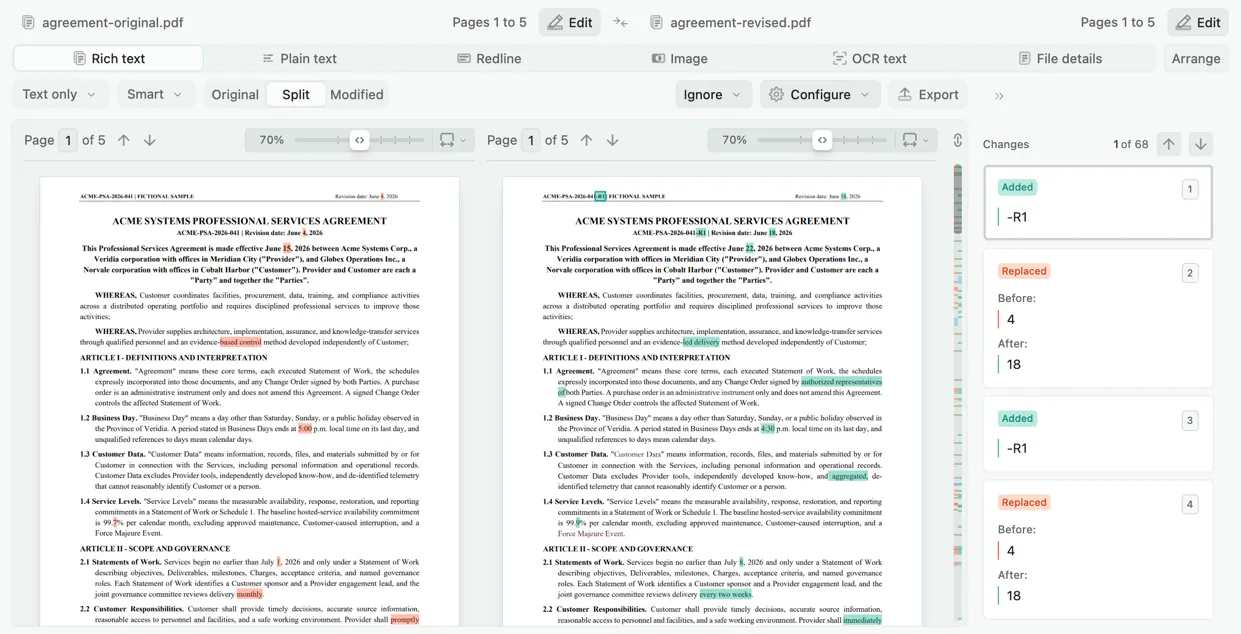
Rich text view
The default view. Headings, lists, tables, and styling stay intact, with removed text in red and added text in green. Formatting changes are detected as well as wording, so a heading that changed from bold to italic is reported rather than passed over.
Plain text view
Strips the formatting and compares the words alone. The fastest way to answer "did the wording change".
Image view
Renders both documents as pages and compares them pixel by pixel. Catches a shifted margin, a resized logo, a changed chart, or a different page break.
World-class OCR
Fast, accurate text recognition reads scanned pages and embedded images, so a scan can be compared word by word like any other document.
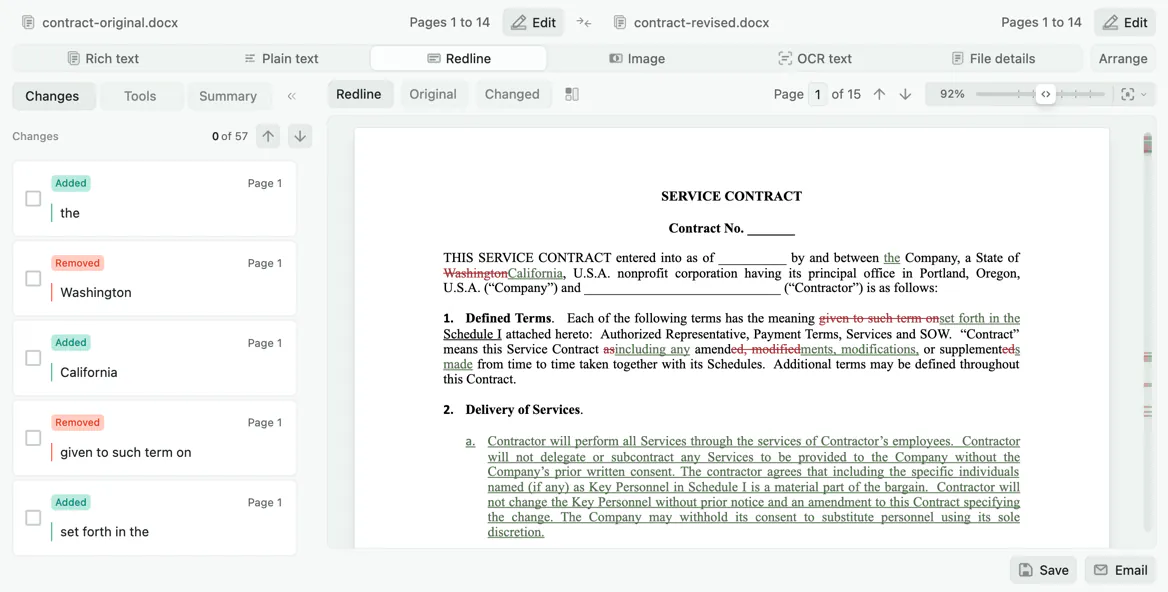
RedlineDesktop
A single marked-up document with insertions underlined and deletions struck through. Accept or reject each change, then export as PDF, Word, or native Tracked Changes.
File details
Compares the files themselves: format, file size, page count, and document properties.
Custom ignore rules
Tell the comparison what to skip: dates, draft numbers, reference codes, or any string you choose.
No sign-up to compare
Drop two files and compare immediately. An account is only needed to save, share, or upgrade.
Built for long documents
Compare long PDFs in full. On the web, Word and PowerPoint files can be up to 10 MB; Diffchecker Desktop converts larger files locally.
How to compare two documents online
- 1
Add the original document
Drag it onto the left panel, or click to browse. DOC, DOCX, PDF, and PPTX all work.
- 2
Add the revised document
Do the same on the right. The two files do not need to be the same format, so a PDF can be compared against a Word document.
- 3
Pick a view
Start with rich text to see wording and formatting together, switch to image for layout changes, or OCR text for scanned pages.
- 4
Review and export
Step through the changes list, then export the side-by-side comparison as a PDF, or save it and send a link.
Why Diffchecker?
Rereading two versions side by side to spot every edit is slow and unreliable. Diffchecker does the rereading for you: each change to wording, formatting, images, and layout is found and highlighted, whichever mix of Word, PDF, and PowerPoint you have.
- PDF against Word, PDF against PDF, Word against Word, and PowerPoint comparison
- Detects moved content, so a relocated clause is reported as moved rather than as deleted and re-added
- Detects formatting changes in font style, size, and color
- Detects changes to images embedded in the document
- Opens password-protected PDFs and reads scanned PDFs with OCR
- Rearrange pages before comparing when the two documents are ordered differently
- Multi-pane view with synchronized scrolling and an interactive list of changes
Encrypted in transit
All traffic between your browser and Diffchecker is encrypted with TLS.
Offline on Desktop
Diffchecker Desktop compares files on your machine with no internet connection.
Independently certified
Your files are handled under an information security program certified to ISO/IEC 27001.
Visit our Trust Center
What people compare with Diffchecker
Legal and contracts
- Compare a returned contract against the version you sent
- Check a signed PDF against the Word draft it came from
- Find clauses that were moved rather than removed
- Review an amended policy against the version on file
Reports and proposals
- Compare two rounds of a proposal or statement of work
- Check that a formatting pass did not change any wording
- Verify a print proof against the approved layout
- Confirm which figures changed in a revised report
Academic and technical
- Compare a manuscript against the copy-edited return
- Check a revised specification against the previous release
- Compare two scanned archival documents with OCR
- Verify a translated document kept the original structure
Formats you can compare
Every supported format can be compared against every other one, so a signed PDF can be checked against the Word draft it came from with no preparation.
Word documents
Headings, lists, tables, and footnotes are preserved, so formatting changes are reported alongside wording changes.
- .doc
- .docx
PDFs
Including password-protected files and scanned pages, which are read with OCR.
Presentations
Slides are compared in order, so changed text, moved elements, and replaced images are all reported.
- .pptx
Cross-format pairs
Compare a PDF against a Word document, a presentation against a PDF, or any other pair of supported formats.
Long documents take longer to render. On the web, Word and PowerPoint files can be up to 10 MB; Diffchecker Desktop converts larger files locally.
Getting a cleaner comparison
Document comparisons become hard to read for a few recurring reasons, and each has a specific setting or view that fixes it.
A large deletion and a large insertion
Look for the move marker. Diffchecker reports a relocated section as a move, where a comparison that cannot detect movement reports it twice, once as a deletion and once as an insertion.
Changes you do not care about
Uncheck the formatting change types you do not need, or add a custom ignore rule for a recurring string such as a date or a reference number. Rich text view reports every formatting change, which buries the wording when a document was reformatted rather than rewritten.
The comparison finds nothing
Check the other views. A PDF that is really a scan contains page images and no extractable text, so a text comparison comes back empty. OCR text view reads the words off the page, and image view compares the rendered pages themselves.
The words match but the pages do not
Use image view. Margins, page breaks, logo sizes, and signature blocks are invisible to a text comparison and obvious in a pixel comparison of the rendered pages.
The two versions are ordered differently
Rearrange the pages before comparing. Aligning the two versions first means the comparison reports content changes rather than a wholesale rewrite.
Trusted by teams and independently certified
- Intuit
- Lyft
- National Geographic
- Salesforce
- The Wall Street Journal
- Congressional Budget Office
- Zoom
- Dow Jones
ISO/IEC 27001 certified
Our information security management system is independently audited and certified. View the certificate in our Trust Center.
“Diffchecker has been great for my company to compare code and PDF documents quickly and accurately. I appreciate having one tool to compare multiple types of files. Diffchecker is a step above Adobe in terms of file comparison.”

Nicholas EnglishVice President, Terabitten
Frequently asked questions about comparing documents
Yes. Drop the PDF on one side and the Word document on the other, and Diffchecker handles the difference in format, so a signed PDF can be checked directly against the draft it came from.
Yes. Enter the password when prompted; you do not need to remove the protection from the file first.
Moved content is detected and reported as moved. Without that, relocating a paragraph shows up as a large deletion in one place and an unrelated large insertion in another.
Yes. Rich text view detects changes to font style, size, and color, and to embedded images. Plain text view strips the formatting out if you want wording changes alone.
PDF comparisons run in your browser. On the web, Word and PowerPoint files are sent to Diffchecker's conversion service before the comparison runs; nothing is published or shared unless you save the comparison and share its link. Diffchecker Desktop converts and compares every supported format offline.
Diffchecker Desktop runs the same comparisons entirely on your computer, fully offline. Nothing you compare ever leaves your machine, which matters for contracts and anything else you cannot upload. It is faster on long documents, and it adds redline: a single marked-up document where you accept or reject each change, exported as PDF, Word, or native Tracked Changes.
More ways to compare with Diffchecker
Compare text
Compare text and code with word-level and character-level highlighting, syntax coloring, and merge.
Compare images
Nine comparison modes including slider, fade, flicker, and pixel subtraction, with automatic alignment.
Compare spreadsheets
Compare XLSX, XLS, CSV, TSV, and ODS files cell by cell, with formula change detection.
Compare on the desktop
Compare whole folders and work fully offline on Windows, Mac, and Linux with the desktop app.
Compare without the browser
Diffchecker Desktop compares text, documents, images, spreadsheets, and whole folders on your machine, offline.
Try for Free!
14-day trial
No credit card required